
It's 2026, and the action RPG Wuthering Waves continues to dominate the mobile gaming scene with its stunning visuals and deep combat system. 🎮 But let's be real, even the most epic adventures can hit a snag. Since its global launch, new players have been running into a few common technical gremlins—think getting stuck on loading screens, mysterious lag spikes, or that dreaded 'Connection Lost' pop-up right in the middle of a boss fight. Annoying, right? Don't worry, this isn't a you problem. These are just the typical growing pains of a massive online game, and thankfully, the fixes are often simpler than you think. This guide is your one-stop shop to squash those bugs and get back to exploring the vast, echo-filled world of Wuthering Waves without a hitch.
🚨 1. Gateway Connection Timed Out / Fatal Error
Picture this: you're hyped to play, you hit launch, and then... BAM! A 'Gateway Connection Timed Out' or 'Fatal Error' message slams the door in your face. 😱 This is one of the most common launch blockers, usually caused by a temporary server hiccup or a shaky connection on your end.
How to Fix It:
-
Step 1: Close the game completely and take a deep breath.
-
Step 2: Before relaunching, become a network detective. Is your Wi-Fi signal strong? If you're on mobile data, do you have a good signal?
-
Pro Tip: Switch to a more stable network if possible. If you're on PC, try using an ethernet cable for a rock-solid connection. Also, turn off any VPNs you might be running, as they can sometimes confuse the game's connection to its servers.
🐢 2. Lag and Stuttering Issues: The Game in Slow-Mo
Nothing kills the vibe of a fast-paced action RPG like the game turning into a slideshow. Lag and stuttering can be caused by a few culprits: your device struggling with the graphics, or your internet having a bad day.
The Graphics Fix (Your First Port of Call):
Head straight to the in-game settings! Tap the menu icon (usually in the bottom right) and navigate to Graphics Settings. Here’s your battle plan:
-
Drop the Preset: Lower the overall Graphics Quality to Low or Very Low. This is the single biggest performance boost.
-
Tweak the Advanced Settings: If things are still choppy, go nuclear on these fancy effects:
-
V-Sync: OFF
-
Motion Blur: OFF (Who needs it anyway?)
-
Volumetric Fog & Lighting: OFF
-
Capsule AO: OFF
-
-
Set these to Low: Shadow Quality, Special Effects Quality, and LOD Bias.
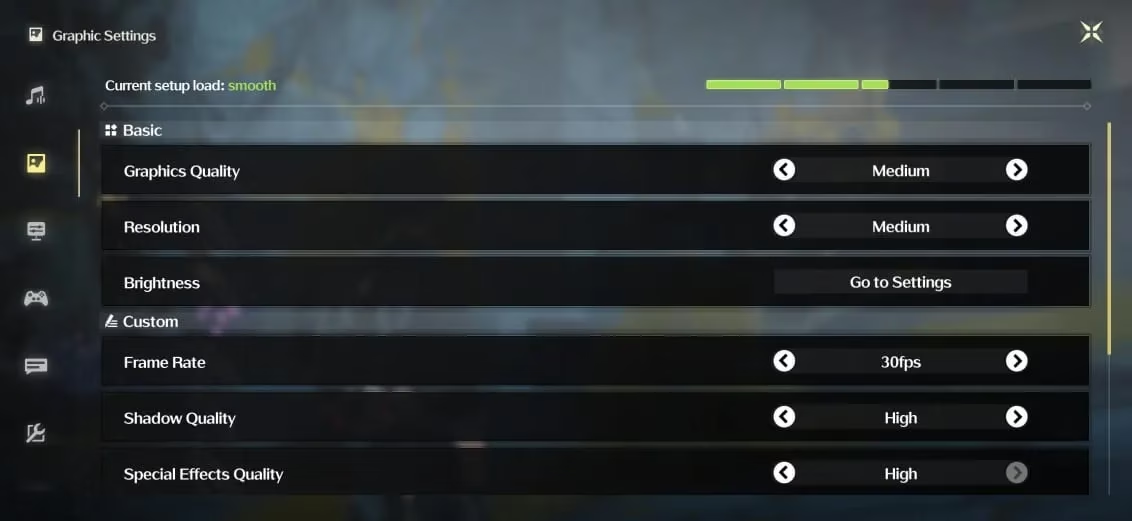
Taming the graphics settings is key to a smooth experience. Image via Kuro Games
The Network Fix:
If your game is running smoothly but you're rubber-banding or actions are delayed, the problem is likely your internet. Refer to the connection fixes in the next section!
❌ 3. "Redeem Failed" Error (Echo Gift Cards)
You scored a sweet Echo gift card code, you enter it with trembling hands... and get a cold "Redeem Failed" message. 😤 Take heart! This isn't a critical error that breaks your game; it's more of a visual bug, especially common when redeeming Echoes.
The Weird but Effective Fix:
The community workaround for this is... to just keep trying? Seriously, players have reported that the error often clears up after redeeming a few more Echo gift cards, typically until you pull a coveted five-star Echo. It seems the game's backend just needs a few extra pokes to process things correctly. So save up those codes and redeem them in batches!
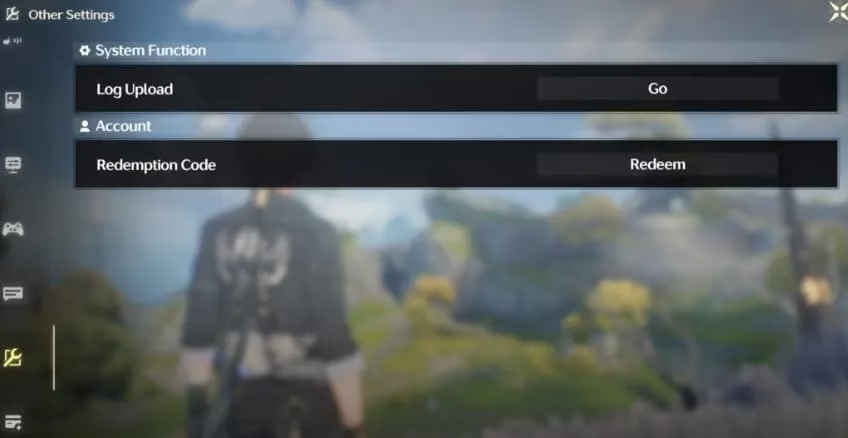
The redemption screen where the bug sometimes appears. Image via Kuro Games
📡 4. "Connection Lost" Pop-up Mid-Game
This is the ultimate nightmare—getting disconnected right as you're about to land the final blow on a tough enemy. This error is almost always a sign of an unstable internet connection.
Get Your Connection Back on Track:
-
Mobile Players: Toggle Airplane Mode on for 10 seconds, then off again. This forces your phone to reconnect to the cellular network fresh. Also, check if you've accidentally switched to a weak Wi-Fi signal.
-
Wi-Fi Users: Try restarting your router. The classic "turn it off and on again" works wonders for routers too! Move closer to your router or consider using a Wi-Fi extender if the signal is weak in your gaming spot.
💥 5. Game Crashing on Android (Black Screen/Freeze)
For some Android users, the game might crash to a black screen or freeze during loading. This is often related to device compatibility, storage, or corrupted game files.
The Android Crash Survival Kit:
-
Source Check: Always download the game from the official Google Play Store. Third-party APK sites are a recipe for unstable versions.
-
Storage Clean-Up: Your phone might be crying for space. Go to your settings, check storage, and delete old apps, photos, or cache you don't need. Wuthering Waves needs room to breathe!
-
The Nuclear Option: If all else fails, a clean reinstall often solves mysterious crashes.
-
Uninstall the game from your phone settings.
-
Restart your phone.
-
Reinstall Wuthering Waves fresh from the Play Store.
-
This ensures you have the latest version and replaces any files that might have gotten corrupted.
⏳ 6. Verify File Integrity Stuck / Error
You're trying to update or repair the game, and the "Verify File Integrity" progress bar is just... sitting there. It's stuck at 0% or maybe 50%, mocking your patience. ⏰
Patience is a Virtue (Seriously):
The best advice here is to leave the launcher open. Even if it looks frozen, it might still be working in the background, especially if:
-
Your internet connection is slow.
-
Your device is just meeting the minimum requirements, so processing is slower.
DO NOT close the launcher midway! This can reset the entire verification process, and if you have a large update file, you might have to download it all over again. Give it a good 30-60 minutes before deciding it's truly stuck.
🔇 7. Music Error / Audio Problems
Suddenly, the epic battle music cuts out, or all sound goes weird. It's a mood-killer for sure, pulling you right out of the immersion.
Quick Audio Troubleshooting:
-
The Classic Restart: Log out of the game and log back in. If that doesn't work, fully close and restart the game app.
-
Check Your Hardware: If you're using headphones or a Bluetooth speaker, disconnect and reconnect them.
-
In-Game Settings: Head to the audio settings. Try sliding the Music Volume to zero and back up. Sometimes, if other sounds (like combat effects) are playing but music isn't, this can jog the system back to normal.
Navigating these early technical hurdles is just part of the journey in a live-service game like Wuthering Waves. The developers at Kuro Games have been consistently rolling out optimizations and fixes since launch, making the 2026 experience smoother than ever. Remember, most issues boil down to graphics settings, internet stability, or simply keeping your game client updated. Now that you're armed with these fixes, you can focus on what really matters: mastering the gacha system, farming those powerful Echoes, climbing the tier list, and enjoying the game's fantastic co-op mode. Happy gaming, Rover! 🚀
P.S. Keep an eye on official channels for new redeem codes and events for free rewards!